TP Link Router Lights- A Guide for Beginners and Advanced Users
If you have ever had a look on your router and wondered whether the LEDs you see mean something, you are not alone. Understanding TP Link router lights can help you save hours of frustration and maybe a support call. Those small indicators are not only decorative. They tell you about the status of the device and also how to read them. This blog will walk you through the complete information on how to read the tp-link router lights and what they mean. The blinking patterns and practical fixes will be discussed which will help you manage the device and troubleshoot if any issue comes up.
So, what do different TP-Link router lights mean?
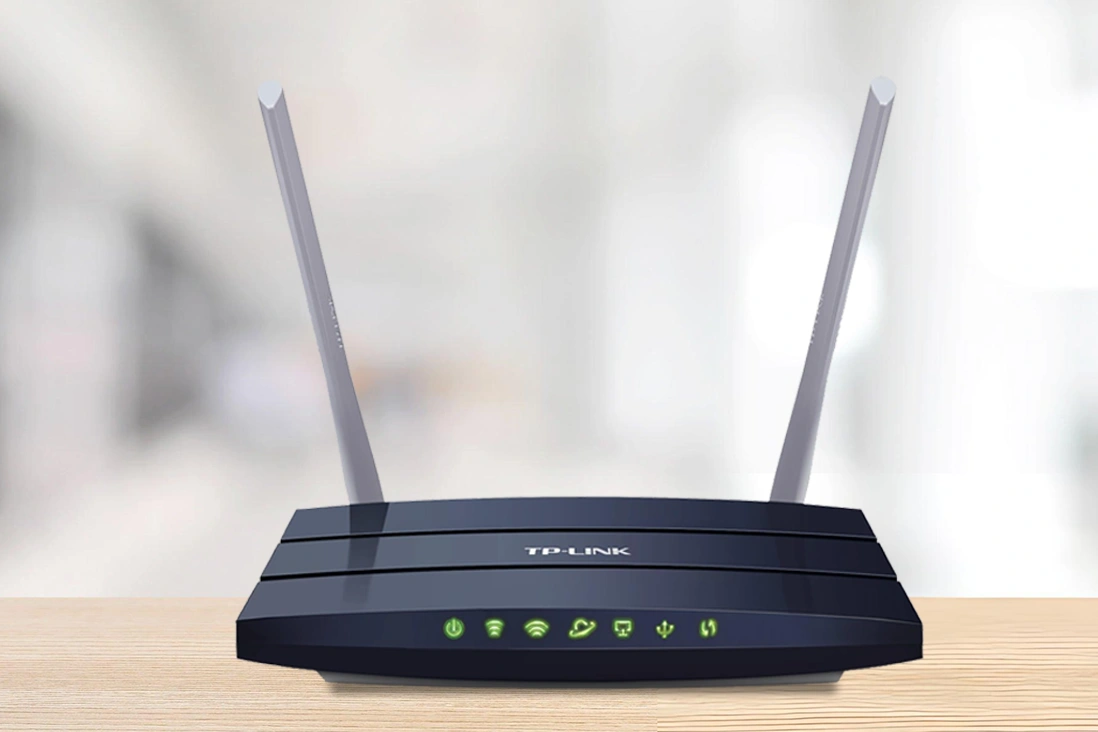
Every TP-Link router model is slightly different, but most include standard LED indicators like- power, internet, WiFI bands, LAN ports, WPS, and USB, if available. The purpose of these lights is to show the status of each function they are labeled against. Once you understand the meaning of the lights, troubleshooting them becomes easy.
Below is some more information on tp link router lights meaning:
WAN LED
This light only has one color i.e. Green.
Indicator
Meaning
Green On
Powered device is connected to the associated port but no traffic.
Off
No powered device is connected
Green Flashing
WAN activity present (traffic in either direction)
Power LED
The light color is Green.
Indicator
Meaning
Green On
Power on
Off
Power off
Internet LED
The color is dual in nature Green and Red.
Indicator
Meaning
Green On
Internet connection on but no traffic
Off
No Internet connection or device is in Bridge mode
Green Flashing
Internet activity present (traffic in either direction)
WLAN LED
Single color is there, i.e. Green.
Indicator
Meaning
Green On
Wireless radio is enabled
Off
Wireless radio is disabled
Green Flashing
Wireless activity present (traffic in either direction)
WPS LED
Single color is there, i.e. Green.
Indicator
Meaning
Green On
This may remain on for 5 minutes when a WPS connection is established, then turn off
Off
No WPS connection
Green Flashing
WPS connection is in progress. This may take up to 2 minutes
LAN LED
Single color is there, i.e. Green.
Indicator
Meaning
Green On
Powered device is connected to the associated port but no traffic
Off
No powered device is connected
Green Flashing
LAN activity present (traffic in either direction)
Phone LED
Single color is there, i.e. Green.
Indicator
Meaning
Green On
The SIP account register successfully
Off
The SIP account does not register or registration failed.
Green Flashing 2Hz, 50% duty cycle
on-hook and there are voice messages
Green Flashing 4Hz, 50% duty cycle
One or more FXS ports are ringing
USB LED
Single color is there, i.e. Green.
Indicator
Meaning
Green On
At least one USB external device has been connected and identified
Off
Both USB ports are not connected to external devices or cannot be recognized by external devices
Green Flashing
Identifying USB external devices
TP-Link Router Power Light Blinking
The first indicator to check is the power LED. If the TP-Link router power light blinks, it could be one of the following reasons:
The router is booting up.
A firmware update is being performed.
The device is resetting.
However, if the blinking persists for more than a few minutes and the internet does not come back, it could be a problem. In such a case, the following steps can be taken:
Switch off the router.
Wait for 60 seconds.
Switch the router back on.
If the problem persists, a factory reset can be performed by pressing the reset button.
If you see that the power light keeps on blinking, it may indicate corrupted firmware or hardware issues, which may require advanced technical assistance.
TP-Link Router Orange Light
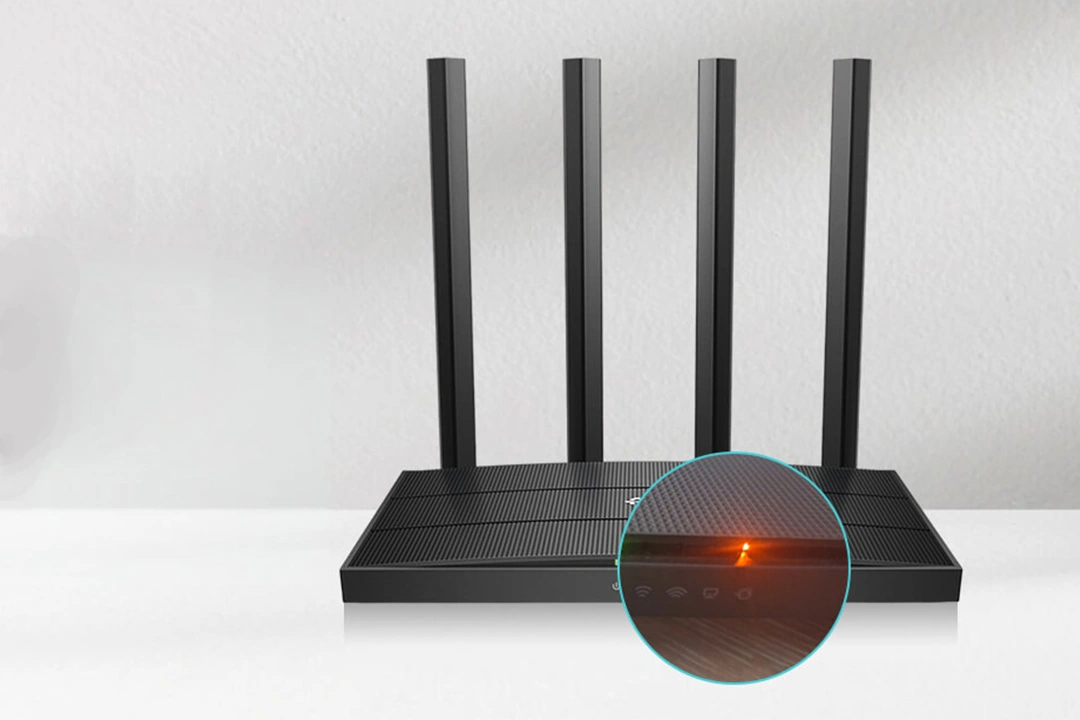
The most common issue people search for is related to the TP-Link router’s orange light. This issue is also referred to as TP-Link router lights orange, especially on the internet or WAN lights. An orange-colored light on the router generally implies:
The router is connected to the modem, but internet connectivity is not available.
There is a weak internet connection.
ISP connection downtime.
How to Fix Orange Light on TP-Link Router?
If you are wondering how to fix the orange light on the TP-Link router, the following steps will be helpful. First, restart the router and the modem by turning them off, waiting for two minutes, and then turning the modem on first, followed by the router.
If the orange light persists:
Check the Ethernet cable between modem and router.
Check an alternative LAN port on the modem.
ISP connection downtime.
Check your router settings and verify your WAN settings.
If the issue persists, it may indicate an outage with your ISP service or an issue with your WAN settings.
How to fix tp link router red light?
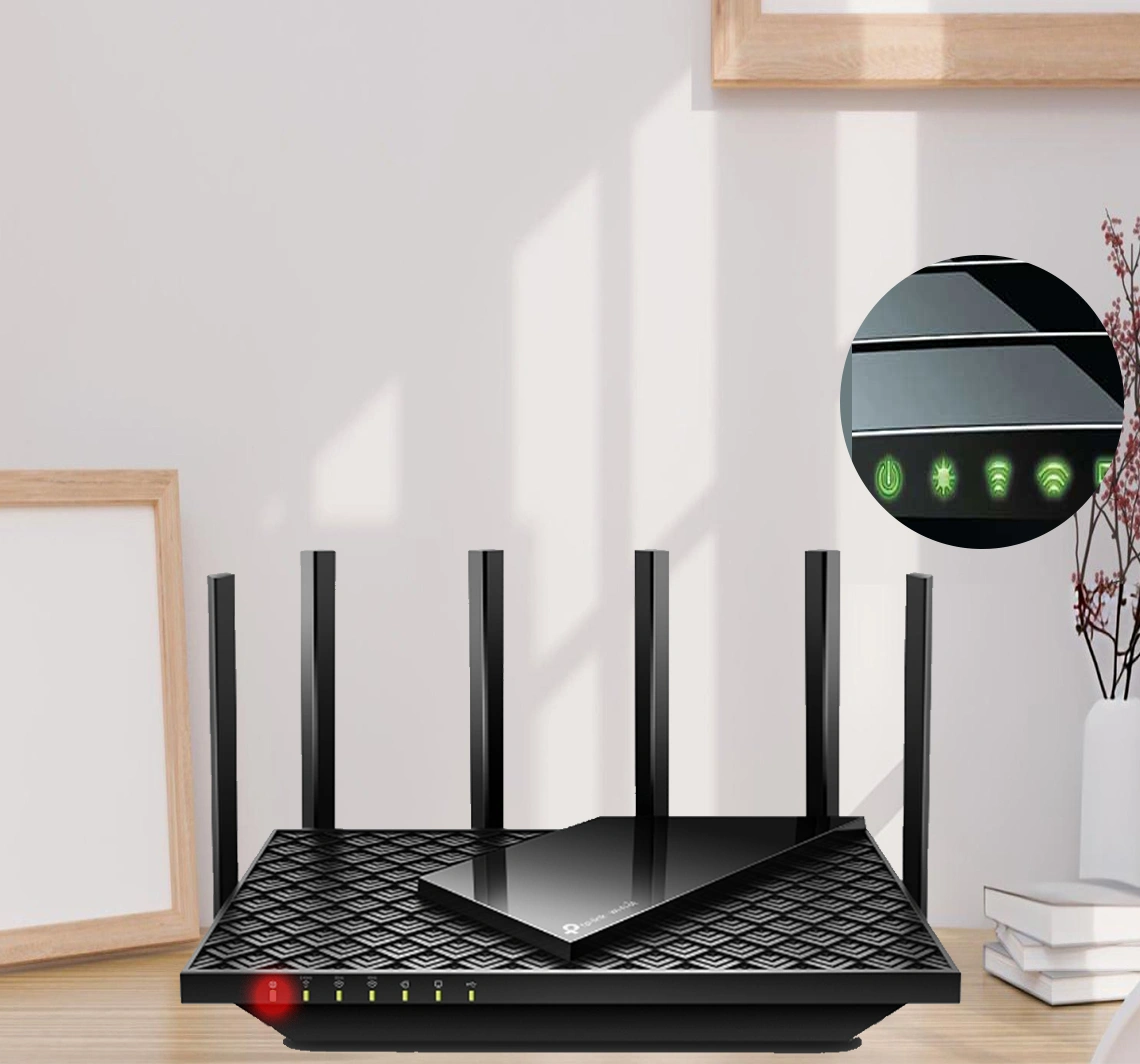
TP-Link router red light, when present, usually indicates a critical problem. This problem, however, mostly occurs on newer devices, as the meaning of the red light on newer devices is the absence of internet connectivity.
If you are looking for how to fix the TP-Link router red light, here are the steps to follow:
First, ensure that the modem is connected to the internet.
If the modem is not connected to the internet, the problem might be from the service provider
If the modem is working fine, restart the modem and the router.
Login and verify the PPPoE user name and password (if applicable).
You can now reset the router and reconfigure it.
Now, replace the cable (if necessary).
A red light on the router does not necessarily imply a faulty router.
Most often, the problem is configuration or internet service provider related.
TP-Link Router Blue Light Blinking
Some TP-Link devices come with a blue LED light. TP-Link router blue light blinking occurs when the device is:
In the process of pairing through the WPS.
At the beginning of the setup process.
When the device is upgrading the firmware.
It is perfectly normal if the blue light starts blinking after you pressed the WPS button. However, if the blue light continues to blink for no apparent reason, you can restart the router to stop the pairing process.
TP Link Router Blinking Green Light
A TP-Link router with a blinking green light is generally a good sign. In most TP-Link routers, a blinking green light indicates that:
Active data transfer is occurring.
The internet connection is good.
The LAN is functioning normally.
If the internet is working correctly, a blinking green light merely means that data is being transferred through the internet.
How Many Lights should be on my TP-Link Router?
Many people wonder, how many lights should be on my TP-Link router? The number of lights that should be on a TP-Link router varies depending on the following factors:
Model of the router you are using
Number of active connections.
The status of dual band WiFi connectivity.
Status of LAN connectivity.
In general, the lights that should always be on are:
Solid light for the power light.
Solid or blinking light for the internet light.
WiFi light that is on, if WiFi is enabled.
LAN light that is on, if devices are connected via LAN.
The Final Word
Your router lights are like a built-in diagnostic tool for your router. Once you know the meaning of TP-Link router lights, you can diagnose your router issues in minutes, not hours.
Whether it is a TP-Link router light orange, TP-Link router light red, or TP-Link router power light blinking, the key is understanding the meaning of the lights and responding systematically. From the number of lights that should be on my TP-Link router to understanding how to fix the orange light on TP-Link router, the details make a big difference.
If the lights are not making sense or the problem persists even after troubleshooting, the best option is to seek professional technical support, which will save time and prevent replacing hardware unnecessarily.
Your router is not random, it’s communicating, and all you need to know is how to read it.